

Download zebNet Chrome Backup 2012 – Secure Chrome Profile Backup Tool
Overview
zebNet Chrome Backup 2012 is a purpose‑built utility designed to safeguard every nuance of your Google Chrome browsing experience. Whether you’re a casual surfer, a power user juggling multiple extensions, or an IT professional tasked with migrating Chrome profiles across workstations, this tool offers an automated, all‑in‑one solution for instant backups. The software captures bookmarks, history, saved passwords, cookies, extensions, and even the hidden preferences that define a personalized Chrome environment.
Once backed up, your profile can be stored locally on a hard drive, uploaded to cloud services such as Dropbox, or transferred to an FTP server for enterprise‑level archiving. The program also shines in scenarios where portability matters; it can generate a portable copy of your Chrome profile, enabling you to carry your entire browser setup on a USB stick and launch it on any Windows machine without leaving traces behind. With scheduled backups, version control, and seamless data migration, zebNet Chrome Backup 2012 eliminates the fear of losing critical browsing data during system upgrades, hardware failures, or accidental deletions.
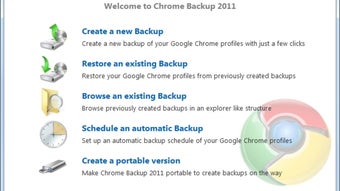
The interface is intentionally minimalistic, focusing on clarity over clutter, so users can initiate a backup with a single click or set up recurring tasks that run in the background. In short, it provides a secure, reliable, and user‑friendly way to protect the digital footprint that lives inside Chrome.
Key Features of zebNet Chrome Backup 2012
- Instant Full Profile Backup: Captures bookmarks, history, passwords, cookies, extensions, and custom settings in seconds.
- Multiple Destination Options: Save backups to local drives, Dropbox, Google Drive (via FTP bridge), or any FTP server.
- Scheduled Automatic Backups: Define daily, weekly, or monthly intervals; the software runs quietly in the system tray.
- Portable Profile Creation: Generates a self‑contained portable Chrome folder that can be launched from USB drives on any Windows PC.
- Cross‑Computer Migration: Export a profile from one machine and import it on another without manual file copying.
- Version History & Restoration: Keep multiple backup versions and roll back to a previous state with a single click.
- Secure Encryption (Optional): Protect backup files with AES‑256 encryption for added privacy.
- Lightweight & Resource‑Friendly: Runs with minimal CPU and memory impact, ideal for older hardware.
- Comprehensive Logging: Detailed logs record each backup operation, helping administrators audit data protection activities.
- User‑Friendly Interface: One‑click backup, clear status icons, and wizard‑guided setup for non‑technical users.
Installation, Setup, and Compatibility
Getting started with zebNet Chrome Backup 2012 is straightforward. The installer is a single .exe file that supports both 32‑bit and 64‑bit Windows environments. After downloading, run the installer with administrator privileges to ensure the program can access Chrome’s profile directories, which are typically stored in %LOCALAPPDATA%\Google\Chrome\User Data. The setup wizard guides you through the following steps:
- Accept License Agreement: Review the EULA and click “I Agree” to proceed.
- Select Installation Folder: The default path (C:\Program Files\zebNet\ChromeBackup) works for most users, but you can choose a custom location.
- Choose Shortcut Options: Create a desktop shortcut and/or a system‑tray icon for quick access.
- Configure Initial Backup Settings: The wizard asks whether you want an immediate full backup and where to store it (local drive, Dropbox, or FTP).
- Finish Installation: Click “Install” and wait for the progress bar to complete.
Once installed, launch the application from the desktop shortcut or the start menu. The first run will automatically detect your default Chrome profile. If you maintain multiple profiles (e.g., work and personal), you can add them manually by clicking “Add Profile” and browsing to the respective folder.
Compatibility: zebNet Chrome Backup 2012 is built for Windows 7, Windows 8, Windows 10, and Windows 11. It works with both the standard Chrome release channel and the portable Chrome edition, ensuring that users who run Chrome from a USB stick receive the same level of protection. While the core product is Windows‑only, the backup files it creates are platform‑agnostic; you can restore a Windows‑generated backup on a Mac running Chrome by copying the profile folder into the appropriate macOS directory (~/Library/Application Support/Google/Chrome).
For users who prefer cloud storage, the program includes built‑in integration with Dropbox. Simply link your Dropbox account during the “Destination Settings” step, and backups will sync automatically. If you opt for FTP, provide your server address, port, username, and password; the software will handle secure file transfers over FTPS when available.
After the initial setup, you can fine‑tune the schedule by navigating to Settings → Backup Schedule. Here you can enable notifications, set retention policies (e.g., keep the last 10 backups), and choose whether to compress backups into ZIP archives to save space. The application also supports silent mode, allowing scheduled backups to run without any UI pop‑ups—a feature appreciated by system administrators deploying the tool across multiple workstations.
FAQ, Pros & Cons, and Final Verdict
Pros
- Instant, comprehensive backup of every Chrome component.
- Multiple storage destinations, including cloud and FTP.
- Scheduled backups eliminate the need for manual intervention.
- Portable profile creation for on‑the‑go usage.
- Lightweight installer and low system overhead.
- Optional AES‑256 encryption for added security.
- Clear, wizard‑driven setup suitable for non‑technical users.
Cons
- Windows‑only native application; macOS users must rely on manual restoration.
- No built‑in support for Chrome’s Chromium‑based edge or other browsers.
- Advanced features like encryption require a paid license.
- Interface, while functional, looks dated compared to modern UI trends.
Frequently Asked Questions
Can I backup multiple Chrome profiles at once?
Yes. After the initial detection, click “Add Profile” and point the tool to each additional profile folder. You can then schedule separate backup jobs or combine them into a single archive.
Is the backup process safe for saved passwords?
Absolutely. The tool copies Chrome’s encrypted password store exactly as Chrome saves it. If you enable the optional AES‑256 encryption, the entire backup file is further protected during transit and storage.
How much storage space does a typical backup consume?
A full profile usually ranges between 100 MB and 300 MB, depending on the number of extensions, saved media, and browsing history. Enabling ZIP compression can reduce this size by up to 60 %.
Can I restore a backup to a different version of Chrome?
Yes. The backup stores raw profile files, which Chrome can read across minor version updates. However, jumping between major releases (e.g., Chrome 58 to Chrome 110) may require a fresh backup after the upgrade.
Is there a free version or trial available?
zebNet Chrome Backup 2012 offers a fully functional 30‑day trial. After the trial, the core backup and restore features remain free, while premium options like encryption and unlimited scheduled jobs require a one‑time purchase.
Conclusion & Call to Action
In the landscape of browser data protection, zebNet Chrome Backup 2012 stands out for its reliability, flexibility, and ease of use. It tackles the most common pain points—accidental profile loss, cross‑device migration, and the need for secure off‑site storage—without demanding technical expertise. While it is tailored for Windows environments and could benefit from a refreshed UI, its feature set delivers real value for both individual users and IT teams. If you rely heavily on Chrome for work or personal productivity, protecting that investment should be a priority. Download zebNet Chrome Backup 2012 today, run the quick installer, and enjoy peace of mind knowing that every bookmark, password, and extension is safely backed up and ready to be restored at a moment’s notice.
Click here to download the free trial now and secure your browsing data instantly.